30/10/2026
I Keep Losing My TV Remote, So I Turned My Mac Into One
I lose my TV remote a lot. It ends up under a cushion, in another room, or somewhere I never find out about until it turns up days later. My laptop, meanwhile, is never lost, because it is always on my lap. So the question was obvious: why can’t the laptop just be the remote?
The timing helped. Reverse engineering with agents was having a moment, and REA, an open-source toolkit that lets coding agents take apart Android apps and native binaries, was going around. LG already ships a phone app, ThinQ, that controls the TV. My plan was to pull that app apart, learn how it talks to the TV, and rebuild the same thing for the Mac.
That is not quite how it went, and the detour turned out to be the most interesting part.
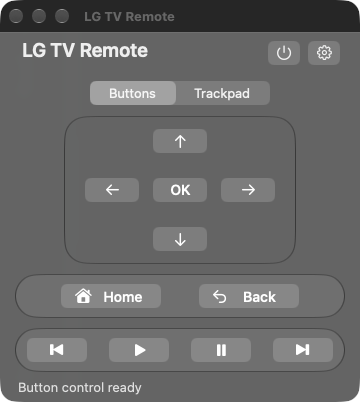
The finished remote. It lives in the Mac menu bar and stays on top while I work.
The plan: decompile the phone app
I set up REA with its Android engine and pointed it at a public sample app first, to make sure the toolchain actually worked on my machine before aiming it at anything real. It did: the sample came back fully parsed.
The next step would have been getting the ThinQ app off a phone and into the decompiler. Before doing that, I asked a simpler question: what does the TV itself already expose on the network?
The TV was already listening
Quite a lot, it turned out. LG’s webOS TVs run a local service, used by LG’s own second-screen features, that accepts commands from devices on the same Wi-Fi. Open-source clients have been using it for years. The pieces are simple:
- Finding the TV. The Mac sends a broadcast-style question on the local network (“is there a webOS TV here?”) and the TV answers with its address.
- Asking permission. The Mac opens a secure WebSocket to the TV and asks to be registered. A prompt appears on the TV screen, and once accepted, the TV hands back a key the Mac keeps for next time. No LG account, no cloud.
- Sending commands. After that, every action is a small JSON message: volume up, mute, launch an app, turn off.
- Moving the pointer. Navigation (arrows, OK, Home, Back) and the on-screen mouse pointer go through a second socket the TV opens on request.
So the decompiler never ran on LG’s app. Everything I needed was already documented in working open-source code. REA was the reason I started, and checking the front door before picking the lock was the reason I didn’t need it. If the local route had hit a wall, the APK was the plan B.
“OK” is not the same as “it worked”
The first commands worked quickly. Then came the lesson that shaped the rest of the project: the TV saying “accepted” does not mean anything visible happened.
So every claim had to be checked against the TV’s own state. Volume up was only counted as working when the TV reported its volume going from 20 to 21, and volume down took it back. Mute was checked the same way. Pressing Home counted when the TV reported that the foreground app had changed from the HDMI input to the Home screen.
Some things can’t be read back at all. The pointer channel, for example, sends no acknowledgement of what happened on screen. For those, the only test was me on the couch, watching the TV, confirming each button by eye: up, down, left, right, OK, Back, pause, play, fast-forward, rewind. The agents could send commands all day, but they couldn’t see the TV. I was the test harness’s eyes.
A remote that lives in the menu bar
The app itself is a small native Mac window that opens from a TV icon in the menu bar. It has two modes:
- Buttons: arrows, OK, Home, Back and playback controls. The Mac’s arrow keys, Return and Escape work too.
- Trackpad: drag on the pad to move the TV’s pointer, click to select, scroll to browse. In apps built for the pointer, it is much faster than stepping through a grid with arrows.
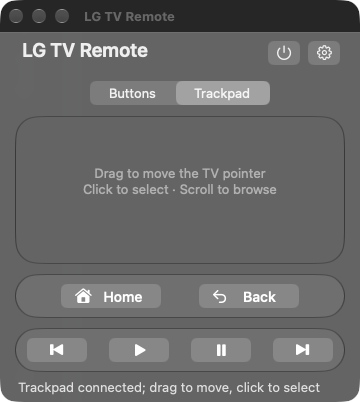
Trackpad mode: the pad drives the TV’s on-screen pointer.
The trackpad needed some care. A drag produces dozens of tiny movement events per second, and firing each one at the TV floods the connection. The app keeps a single connection open while the pad is in use, merges movements into at most 25 updates a second, and waits for each one to be sent before sending the next. Switching back to Buttons or closing the window releases the connection.
Clicking TV in the menu bar shows or hides the remote. Right-clicking it opens the full command menu, so most things work without the window at all: finding and pairing the TV, status, power, volume, navigation, a list of installed apps to launch by name, and TV inputs. The gear button in the window opens the same setup actions.
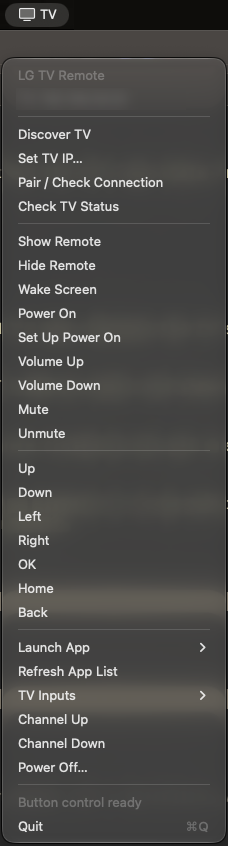
Right-click the TV icon for every command without opening the remote.
Turning the TV on from the laptop
Turning the TV off over the network is easy. Turning it on is harder, because a TV in standby isn’t running the service you’ve been talking to.
The answer is Wake-on-LAN, a decades-old trick: a special “magic packet” containing the TV’s network hardware address, broadcast on the local network. A TV with LG’s Turn on via Wi-Fi setting enabled keeps its network card listening for exactly that packet while it sleeps.
The app sets this up itself. While the TV is on and paired, it asks the TV for its network addresses and saves them privately on the Mac. Pressing Power On then sends the packet and, importantly, doesn’t declare success just because a packet left the laptop. It waits for the TV to answer again on its authenticated connection and report that it is active.
The real test was simple: turn the TV off from the app, confirm it stopped responding, press Power On, and wait. The TV came back, reported itself active, and a separate status check succeeded afterwards. That was the moment it stopped being a toy.
What I cut
Not everything made it. The most tempting feature was typing: search Netflix or YouTube from the Mac keyboard instead of hunting letters on an on-screen grid. The TV has a text-input command, and it accepted every request I sent. Netflix showed nothing. It turns out apps are allowed to draw their own keyboards that never use the TV’s text system, so the TV happily accepts text that no app is listening for. YouTube had a workaround through a special launch link, but I could never confirm it reliably.
So search and typing were removed entirely. The rule for the release was strict: only ship what was confirmed on the actual TV. A feature the TV “accepts” but nobody has seen work is a bug report waiting to happen.
Shipping it as a real app
The finished remote is a standalone Mac app, about a 9.4 MB download. It carries everything it needs inside, so nothing else has to be installed, and your pairing key stays in your own user data, never inside the app. The code is on GitHub, and the app can be downloaded from its releases page.
What works today
Confirmed on my TV (an LG UQ8040PSB) from this Mac:
| Feature | How it was confirmed |
|---|---|
| Find and pair the TV | TV prompt accepted; reconnects after restart |
| Volume and mute | TV-reported volume and mute changes |
| Arrows, OK, Back, Home | Watched on screen; Home also by app readback |
| Trackpad move, click and scroll | Watched on screen |
| Pause, play, fast-forward, rewind | Watched on a playing YouTube video |
| Launch installed apps by name | Watched on screen; foreground app readback |
| Switch TV inputs | Watched on screen |
| Channel up and down | Watched on screen |
| Power on from standby | TV went unreachable, then reported active again |
It has limits. It has been tested on one TV and one Mac, so other models and webOS versions may behave differently. The app is signed for local use only, not notarized by Apple for public distribution.
What I took away
I came for reverse engineering and left with a lesson about checking the obvious first: the TV had a front door, and it was open. The rest was the slow, unglamorous part of making something trustworthy: refusing to count “accepted” as “worked”, and cutting the features that only worked on paper.
The physical remote will keep disappearing. The laptop won’t, and now that is enough.
Cite this article
Naman Chawla. 2026. I Keep Losing My TV Remote, So I Turned My Mac Into One. https://palindromerice.github.io/writing/lgtv-remote/
@misc{chawla2026lgtvremote,
  author       = {Naman Chawla},
  title        = {I Keep Losing My TV Remote, So I Turned My Mac Into One},
  year         = {2026},
  howpublished = {\url{https://palindromerice.github.io/writing/lgtv-remote/}},
  note         = {Licensed under CC BY 4.0}
}
Text, figures and results are licensed under CC BY 4.0. Reuse is welcome with credit and a link to this page.